Developer Tools

Chrome contains super good developer tools that can be used to debug, test and develop your pages in real-time. They can be opened by typing cmd + shift + c on a Mac and ctrl + shift + c on a Windows. Then just select anything on your page.
When you press that keyboard combination, you can select any element on your page. When you have selected an element, you can see the selected HTML node on the left of your developer tools and on the right you can apply any CSS styles for that element in real-time. This is really great for developing and testing out some new styles for your elements on your page.
Do note however that each time your page refreshes, you will lose all the changes you made using your developer tools.
Using the developer tools color picker
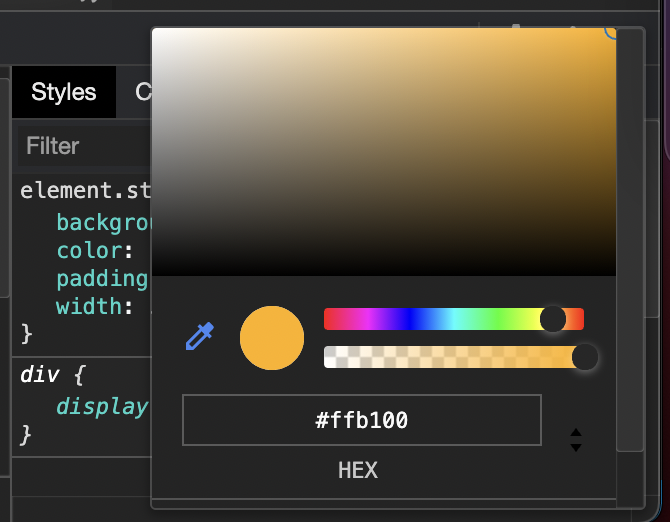
There is a built-in color picker also available in developer tools. Just set the color or background-color or any element on your page using your developer tools and then you can click on the color to pick any color from your site or make modifications to your selected color.
Challenge
Using your developer tools and with CSS, change:
- Page background color (body element) to lightGray
- .container class to have white background color
- .container class to have padding of 20px
- The text Articles font-size to 30px and to not be bold